Tuesday, October 26, 2021

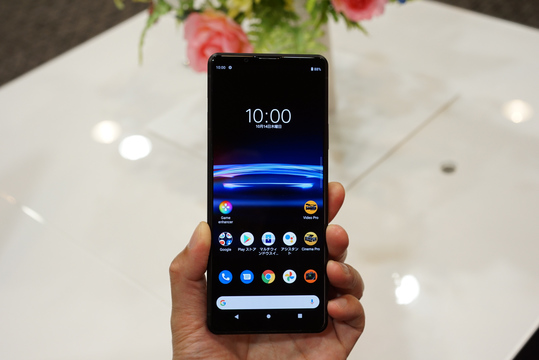
I've touched the camera "Xperia PRO-I"


It's compatible with Osaifu-Keitai, so you can usually do it.


The Xperia PRO-I announced today is equipped with the largest 1-inch size sensor for smartphone cameras . I immediately touched it at an experience session for media / influencers


Together with the photo of the main body, we will deliver the first impression you touched.


The first impression I had was "that? Lighter than I expected?" It's 211 grams, so it's heavier, but it's lighter than you can imagine from its profound appearance and the feel of metal.


It is easy to grip thanks to the knurling (unevenness processing) on ​​the side. It's also a camera-like production.

____________________________________


Despite the size of the sensor, the protrusion of the camera is surprisingly small. Also, since the camera is located in the center of the main unit, it is stable even when placed flat.


Combination with grip GP-VPT2BT, which can be used with digital cameras for Vlog, ZV-1, etc., and small monitor "Vlog Monitor". Since the small monitor is fixed with a magnet, it can be moved left and right to some extent.


When I touched it for about 30 minutes, it seemed like it could be used as an ordinary smartphone .


The Xperia PRO (the one without I) has an overflowing "professional equipment" feel, and I felt that "only professional photographers use this", but PRO-I is much more friendly. is.

Labels: , , ,

How to delete location information from photos taken with iPhone


 Every time you take a photo with your iPhone, the location is saved with the photo.


This feature, called geotagging , is useful because you can search for photos by location. However, it is inconvenient when you want to share photos without giving information on the shooting location.


The good news is that most social networks delete the photo location information before uploading.


Before sharing photos with services or methods that do not delete the location information, such as message apps, cloud services, and file sharing services (including AirDrop), it is a good idea to delete the location yourself.


This time, I will show you how to easily delete the location where the photo was taken.


How to delete a photo location before sharing


Open the "Photos" app on your iPhone and select the photo you want to share. Tap the share icon in the lower left corner to open the iPhone share sheet.

At the top of the shared sheet (where you can see how many photos you have selected) , tap Options . On the options screen, turn off the "All photo data" slider under "Include".

If this slider is green, it contains the location information of the shooting location. Not included if the slider is gray. Tap Done to save your changes and share your photo.


How to disable geotagging for all photos on iPhone


It only takes a few seconds to delete your location before sharing your photos, but in less than a few seconds you can even geotag your iPhone photos from the beginning.

If that's a hassle, you can easily not record your location when you take a picture.

However, if you disable geotagging, you will not be able to search iPhone photos by location.

Searching for photos by city or country name gives no results. The advantage is that you don't have to worry about inadvertently exposing your location when you share your photos.

For most people, disabling geotagging for accurate location information is a good choice. I still know the approximate location where the photo was taken, but the range is so wide that I don't know the exact location.

To completely disable geotagging, select " None " in " Settings> Privacy> Location Services> Camera " on your iPhone .

To prevent the iPhone camera from recording the exact location information where the photo was taken , check the same settings page as above (" Settings> Privacy> Location services> Camera ") and check anything other than "None". Then turn off the " Accuracy " slider.

Labels: , , ,

Monday, October 25, 2021

Gadgetty has a lot ...! I touched the smartphone "Astro Slide 5G Transformer" that hides the full keyboard


I was wondering if smartphones have evolved completely.


There was a guy who was about to make a ridiculous evolution !


Its name is " Astro Slide 5G Transformer ". All conventional smartphone functions are included , and of course 5G is supported. Despite its compact size, it houses a QWERTY keyboard , and as you can see, it can be opened quickly with a single action. What's more, it's a smartphone that stands out in terms of both hardware and software, with dual installation of Android 11 OS and Linux and the ability to customize it to your liking ...!


"Astro Slide 5G Transformer" is currently raising acclaimed funds at " Makuake " in Japan, following the American crowdfunding site " Indiegogo " .


Dr. Janko Mrsic-Flogel, CEO of Planet Computers , the creator of Astro Slide, talked about its appeal!


A smartphone that can be used as a computer

First, let's look at the specs you care about.


The size is 172.4 mm in height x 76.5 mm in width x 17.8 mm in thickness, and weighs about 300 g.

Is the iPhone 13 Pro Max (height 160.8 mm x width 78.1 mm x thickness 7.65 mm, weight 238 g) easy to understand for comparison ? It's thicker and heavier by the amount of the keyboard, so I think it's definitely one of the biggest in the smartphone world.


It's like this when you have it. It's a little heavy with one hand, but it doesn't feel strange in terms of size.

The 6.39-inch AMOLED (organic EL) touch screen has a resolution of 2340 x 1080 and Gorilla Glass 3. It is clear and beautiful.

Previously developed by Planet Computers, the GEMINI PDA and Cosmo Communicator only supported landscape mode (landscape), but this time Astro Slide is now available in portrait mode (portrait) as well. .. What's more, if you set it, you can seamlessly switch between vertical and horizontal with the touch of a button! (It can be set with the smart button function, and other options are shown in the above image).


The keyboard is stored at the bottom of the screen. Before you get used to it, it is recommended to open it with both hands on a table to prevent it from falling.


When this happens, it's almost like a small 

computer .


The sound of " Ja " while sliding the screen and "Cachon!" When fixing with a magnet at the end is really gadgetty and highly satisfying ...!


The full mechanical keyboard, which overturns the conventional concept that "smartphones are difficult to type", can be typed with both hands, albeit small. Once you get used to it, you can write long emails on the go and even create documents in a hurry without having to carry around a laptop.

It seems that the keyboard can be selected from all 24 types of layouts including kana keys, and it is possible to freely map the keyboard to your liking .


This is the ultimate keyboard backlight . It was bright enough to type with plenty of room even when the room was actually pitch black. It seems to be useful for taking notes during meetings, and I was convinced that the specifications are such that they can be used anytime, anywhere

All the functions you want on your smartphone

Introducing other than touch screen and keyboard.

Mainly Sony's 48 megapixel camera , it also has a 13 megapixel in-camera .

NFC compatible and 10W Qi wireless charging is also possible. It has a stereo speaker, a microphone, a 3.5mm audio jack, and two USB-C ports (one dedicated to video output).

In addition to being able to unlock instantly with the fingerprint authentication button , there is also a physical button called a " smart button " that allows you to customize the operation to your liking. It seems that this was actually developed by reflecting the voice of the user, and various functions can be assigned to the three actions of "click", "double click", and "long click".

For example, you can instantly switch the screen from portrait mode to landscape mode with a single touch, take a screenshot, launch any app, cycle through the running apps, and so on. It seems that you can customize it


As for hardware, it is equipped with 
MediaTek's Dimensity 800 chip with 8 cores, and the maximum speed is 2.39GB / s. In addition to 8GM RAM and 128GB memory, it is very convenient to have a slot for a micro SD card.

As you can see in the image above, the specifications are such that two nanoSIM cards and one eSIM can be stored inside the long SIM card tray (up to two SIMs can be used at the same time, including eSIM). However, which eSIM to use can be managed / switched with the dedicated app).


You can also dual install Linux


From here on, it's an area for people who are familiar with it, but it is also possible to introduce a Linux system.

If you partition the storage like a personal computer, you can install a typical Linux distribution such as Kali, Debian, Ubuntu, etc. and run a mobile OS such as Sailfish or Postmarket.


"I just want to make a device that is easy to use.


Why is Planet Computers sticking to smartphones with keyboards in the first place?

According to CEO Dr. Yanko,

It was a pain to have to carry a laptop with me to work. I was looking for a smartphone that was easy to type and fits in my pocket, looking for a more efficient communication tool .

There used to be a lot of devices with keyboards, such as Psion Series 3, NOKIA Communicator, and Eriksson. However, since the introduction of the iPhone, touch screen smartphones have become more and more mainstream. So let's make it ourselves! When.

In 2016, Dr. Yanko launched Planet Computers with his colleagues. Launched at Indiegogo the following year, the "Gemini PDA" was a pocket-sized computer with a telephone function rather than a smartphone. The "Astro Slide," which was developed over the next four years , is evolving into a smartphone with exactly the same functions as a computer .

Astro Slide 5G Transformer is so attractive that Richard is in agony. It is expected to release date and price, but those who are worried because they are from time to time published in the crowdfunding site is here. Check it out for!

Labels: , , ,

I want to try it first when I update it. 15 new features for Android 12


Android 12 out 

Starting with Google's Pixel (3 or later) , information about Appde will gradually come to Android devices from other manufacturers ~ Exciting. Let's prepare for the 15 new features that you want to try first after introducing them


1) Capture the entire screen up to the scroll destination


It's a feature that has been available for some time in Chrome, but it's finally possible to capture full screen on Android. You don't have to capture it like an inchworm-> scroll-> scroll-> scroll-> inchworm, and if you stitch the screenshots together, there will be one line missing and you will have to start over. Press the power button and volume down button at the same time to snap the display area. You can take and save the full screen including the scroll destination by pressing " Capture More " in the corner of the screen .


2) The search range has expanded

The search window, which used to only search the Web, can now search for contacts, communications, apps, and more. You can choose what you want to include in the search and what you don't.


3) Speedy automatic rotation. Pixel will match your face!

Google says that it wipes out the moody feeling of automatic rotation, and Android 12 switches between vertical and horizontal quickly, smoothly and accurately. When the face is lying down with the terminal, it seems that it can also judge whether it automatically rotates (though it is limited to Pixel). How do you identify the orientation of your face?


4) Check the latest privacy status on the dashboard

Android becomes more robust with each version upgrade. Security is perfect even in the latest version. From the settings menu, tap "Privacy"> "Security Dashboard" to get a panoramic view of the apps you have authorized within 24 hours.


5) I want to use Google's newly designed emoji!

Some of the pictograms have been redesigned to make them modern and simple. What has changed are croissants, snowmen, driveways, pies, and masked smiles. Click here for explanations and samples .

6) Game mode is also available


"Game mode" is now available on Android. In game mode, you'll be optimized for a high-load hardware environment, and you'll be able to block notifications and focus on your play. Open "Notifications", tap "Do not Disturb"> "Schedule" and press the "Gaming" gear icon to open the game settings screen. If you enable "Create Shortcut" here, it seems that dashboard shortcuts will be displayed during the game.


7) Open multiple Chrome windows

For the first time on mobile, the ability to open multiple windows and tabs has also been realized in collaboration with Google Chrome for Android. It is available from the main browser menu. Split screen view has also been enhanced in Android 12, so it seems to be useful when splitting.


8) Quickly switch Wi-Fi


Improved where it was a little difficult to switch. In 12, just swipe down from the top of the screen and tap "Internet" to display a list of networks that can be used like this, so you can switch to your favorite Wi-Fi here or turn on / on the Wi-Fi connection. You can switch off.

9) More types of quick settings

The quick settings panel ( displayed with a two-finger swipe from the top to the bottom of the screen ) has a full range of functions and settings that can be operated. Not only smart homes, but also Google Pay and new accessibility settings can be done here. Tap the pen icon at the bottom left and select the button you want to display

10) Turn off the camera and microphone with a single tap

The operation to turn off the camera and microphone is also easy, and if you enter this screen with a two-finger swipe from the top to the bottom of the screen, you can turn it off with one tap. The nice thing about Android 12 is that if you have an app that uses a camera or microphone, it will be displayed at the top of the screen.


11) The annual Easter egg, this time ... an analog clock


You can't talk about the latest version of Android without talking about Easter eggs. Open "Settings", go to " About phone" > "Android version information", and tap "Android version information" several times. This will bring up an analog clock, so try manually spinning the hands of the clock until you're satisfied. Surprise is also available at 12PM (or 12AM).

Labels: , ,